Exporting Entire Conversation
The Gemini to Word, PDF & Google Docs extension lets you export the entire conversation in just one click. This includes the ability to:
- Export both User prompts and Gemini responses
- Or export only the Gemini responses, omitting the user input
Exporting Entire Coversation with User Prompts
- Open any Gemini conversation at Gemini Home Page .
- Look at the top right corner of the conversation window.
- Click the Google Docs or Word or PDF button to download the entire conversation.
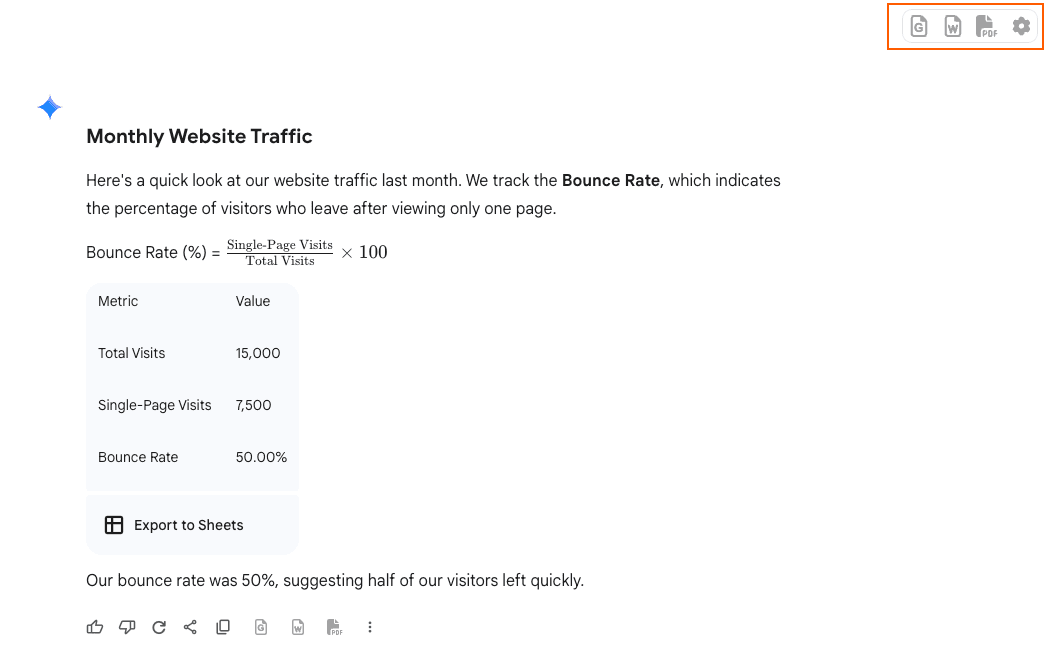
By default, both user prompts and responses will be included.
Export Only Gemini Responses from Entire Conversation
If you prefer to export only the Gemini responses, follow these steps:
- Click the Settings gear icon in the top right corner of the Gemini conversation page.
- In the Settings popup, scroll to the Conversion Settings section.
- Enable the checkbox labeled “Export only Gemini responses.”
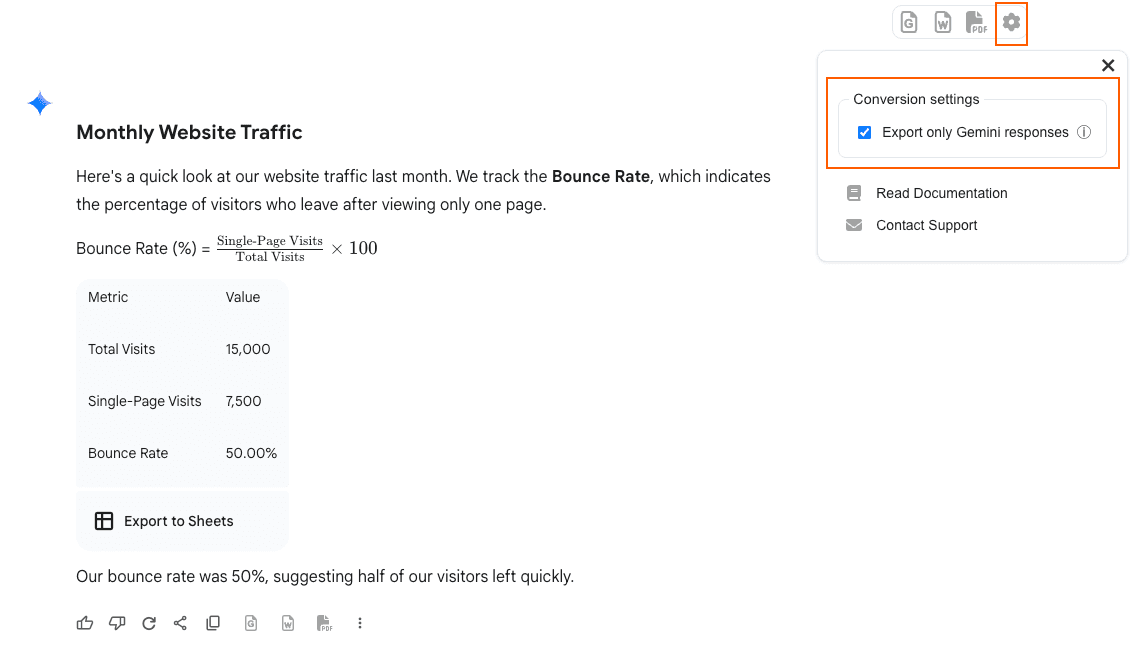
Note: Once enabled, this setting will be saved automatically and used as the default for future exports.
You can disable it anytime by returning to the same Settings window.
Tip: Use this option when you only want to archive or share the AI’s output without including your prompts or instructions.
Last updated on